
この記事はAndroidスマホ用のアプリ開発の中で、
今後の開発で再使用性が高いと思われるコーディングをまとめたものです。
Javaの開発経験、XML構文規則、Androidのアプリ開発経験がある方を対象としています。
Androidのアプリ開発でお役にたててれば、嬉しいです。
(これからAndroidのアプリ開発やJavaでの開発を始めたい方への案内は、記事の最後で紹介します)
Android17の新しい位置情報プライバシー機能(位置情報ボタン)に対応する
位置情報の利用許可に関するポリシー
ユーザーのプライバシーをより適切に保護するため、位置情報の利用許可に関するポリシーを更新します。ユーザーデータと機密情報に関わる権限の要件に沿って、正確な位置情報を取得するための位置情報ボタンを推奨される最小限の範囲として導入する予定です(2026年10月28 日発効)

位置情報ボタン

位置情報ボタンの導入
正確な位置情報を扱う場合、ユーザ承認を一度取得すれば自由にアクセスが可能でした。
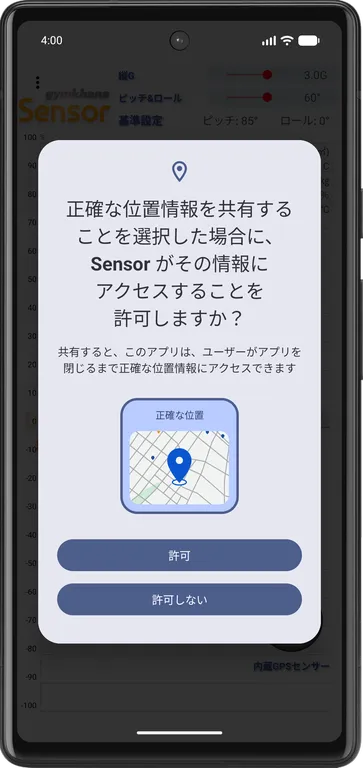
Android17では位置情報ボタンを使用してセッションベースの位置情報アクセスのユーザ承認が必要です。
Android17以上に対応するアプリで正確な位置情報を扱う場合、位置情報ボタンの導入が必要になります。
build.gradle(app)
compileSdk、targetSdkVersionに37(Android 17)を指定、dependenciesにJetpackライブラリを追加します。
:
android {
    compileSdk = 37
    defaultConfig {
        :
        targetSdkVersion 37
        :
    }
    :
}
dependencies {
    :
    implementation 'androidx.core.locationbutton:locationbutton:1.0.0-alpha01'
}
AndroidManifest.xml
ACCESS_FINE_LOCATIONにusesPermissionFlags=”onlyForLocationButton”、USE_LOCATION_BUTTONを追加します。
<manifest
    :
    <uses-permission android:name="android.permission.ACCESS_FINE_LOCATION" android:usesPermissionFlags="onlyForLocationButton" tools:targetApi="31" />
    <uses-permission android:name="android.permission.USE_LOCATION_BUTTON" />
    <uses-permission android:name="android.permission.ACCESS_COARSE_LOCATION" />
    :
layout
layout(xml)にLocationButtonを追加します。
ボタンの定型テキストや色、文字色など指定できます。
<RelativeLayout
    xmlns:android="http://schemas.android.com/apk/res/android"
    xmlns:app="http://schemas.android.com/apk/res-auto"
    :
    <androidx.core.locationbutton.LocationButton
        android:id="@+id/location"
        android:layout_width="wrap_content"
        android:layout_height="wrap_content"
        android:iconTint="@color/white"
        android:textColor="@color/white"
        app:backgroundColor="@color/blue"
        app:cornerRadius="24dp"
        app:locationButtonTextType="use_precise_location/>
   :
   <Button
        android:id="@+id/command"
        :
        />
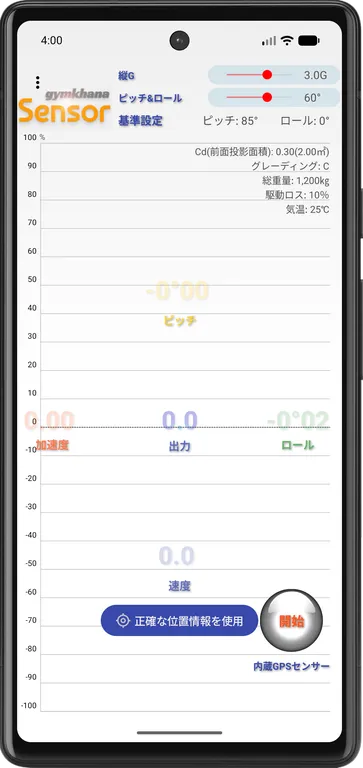
:定型テキストは正確な位置情報を使用(use_precise_location)
ユーザ承認チェック
Android16以下で正確な位置情報を扱う場合、ユーザ承認をチェックします。
ユーザ承認済みの場合は正確な位置情報を扱う処理を実行します。
未承認の場合はユーザ承認をリクエストします。
Android16以下ではユーザ承認の取得した状態を保持しています。
    private static final int REQUEST_MULTI_PERMISSIONS = 101;
    :
    private void checkPermissions() {
        ArrayList<String> requestPermissions = new ArrayList<>();
        if (Build.VERSION.SDK_INT < Build.VERSION_CODES.CINNAMON_BUN) {
            if (ContextCompat.checkSelfPermission(this, Manifest.permission.ACCESS_FINE_LOCATION) != PackageManager.PERMISSION_GRANTED) {
                requestPermissions.add(Manifest.permission.ACCESS_FINE_LOCATION);
            }
        } else {
            if (ContextCompat.checkSelfPermission(this, Manifest.permission.ACCESS_COARSE_LOCATION) != PackageManager.PERMISSION_GRANTED) {
                requestPermissions.add(Manifest.permission.ACCESS_COARSE_LOCATION);
            }
        }
        :
        if (!requestPermissions.isEmpty()) {
            ActivityCompat.requestPermissions(this, requestPermissions.toArray(new String[0]), REQUEST_MULTI_PERMISSIONS);
        } else {
            // 位置情報を扱う処理
            :
        }
    }

    @Override
    public void onRequestPermissionsResult(int requestCode, @NonNull String[] permissions, @NonNull int[] grantResults) {
        super.onRequestPermissionsResult(requestCode, permissions, grantResults);
        if (requestCode == REQUEST_MULTI_PERMISSIONS) {
            if (grantResults.length > 0) {
                for (int i = 0; i < permissions.length; i++) {
                    switch (permissions[i]) {
                        case Manifest.permission.ACCESS_FINE_LOCATION:
                        case Manifest.permission.ACCESS_COARSE_LOCATION:
                            if (grantResults[i] != PackageManager.PERMISSION_GRANTED) {
                                // ユーザ承認が取得できなかった時の処理
                                :
                                return;
                            }
                            break;
             :
                        default:
                    }
                }
            }
        }
        // 位置情報を扱う処理
        :
    }
}
:
位置情報ボタンの実装
位置情報ボタンはAndroid17以上で正確な位置情報のユーザ承認が取得できていない場合に表示します。
ユーザ承認の取得は位置情報ボタンのリスナー(setOnPermissionResultListener)で検出します。
位置情報ボタンの表示状態でユーザ承認のチェックを行い、承認済みの場合は正確な位置情報を扱う処理を実行します。
public class MainActivity {
    :
    private Button                  command;
    private LocationButton          location;
    :
    @Override
    protected void onCreate(Bundle savedInstanceState) {
        :
        command = findViewById(R.id.command);
        location = findViewById(R.id.location);
        location.setOnPermissionResultListener(b -> location.setVisibility(Build.VERSION.SDK_INT < Build.VERSION_CODES.CINNAMON_BUN || ContextCompat.checkSelfPermission(this, Manifest.permission.ACCESS_FINE_LOCATION) == PackageManager.PERMISSION_GRANTED? View.INVISIBLE : View.VISIBLE));
    }

    @Override
    protected void onResume() {
        :
        location.setVisibility(Build.VERSION.SDK_INT < Build.VERSION_CODES.CINNAMON_BUN || ContextCompat.checkSelfPermission(this, Manifest.permission.ACCESS_FINE_LOCATION) == PackageManager.PERMISSION_GRANTED? View.INVISIBLE : View.VISIBLE);
        :
        command.setOnClickListener(v -> {
            if (location.getVisibility() == View.VISIBLE) {
                // エラー処理(位置情報ボタンでユーザ承認してください)
                :
            } else {
                // ユーザ承認チェック
                checkPermissions();
            }
            :
        });
    }
    :
}
ユーザ承認は、Android17以上は位置情報ボタンの表示状態、Android16以下はユーザ承認チェックでチェックしています。
今回は、ここまでです。
位置情報ボタンの導入に対応しているAndroidアプリです。

誤字脱字、意味不明でわかりづらい、
もっと詳しく知りたいなどのご意見は、
このページの最後にあるコメントか、
こちらから、お願いいたします♪
ポチッとして頂けると、
次のコンテンツを作成する励みになります♪

これからAndroidのアプリ開発やJavaでの開発を始めたい方へ
アプリケーション開発経験がない方や、アプリケーション開発経験がある方でも、JavaやC#などのオブジェクト指向言語が初めての方は、Androidのアプリ開発ができるようになるには、かなりの時間がかかります。
オンラインスクールでの習得を、強くおススメします。
未経験者からプログラマーを目指すのに最適です。まずは無料カウンセリングから♪

ゲーム系に強いスクール、UnityやUnrealEngineを習得するのに最適です。まずは無料オンライン相談から♪

参考になったら、💛をポッチとしてね♪
コメント欄